StoreAutomator Help Center home page
StoreAutomator.com Book A Demo Submit a request Sign in

Search

  1. StoreAutomator
  2. Knowledge Base
  3. Order Management

How to add/create a Shipping Service (Carrier) to StoreAutomator 

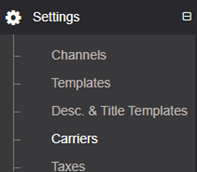
You can add shipping services (carriers) in Settings >Carriers 
mceclip0.png
Click "+ Add Carrier" within the Carriers section.

mceclip1.png

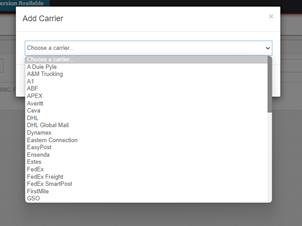
Another box will pop up with a drop-down menu. You can choose your preferred shipping service.
mceclip2.png

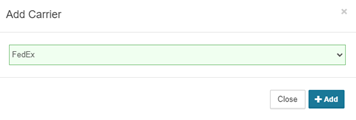
After selecting your shipping service, you will simply click “+Add” button.
mceclip3.png
Enable Order Forwarding Switch

Related articles

  • Purchase Order
  • How to Set Up Free Shipping on Sears
  • How to Import Shipping Template Only from the Remote Channel
  • Enable Order Forwarding Switch
  • Use ShipStation to Ship Your Orders

Was this article helpful?

0 out of 0 found this helpful

Articles in this section

  • How to Manage Amazon MCF orders in StoreAutomator
  • How to Ship Amazon MCF Orders Without Amazon Logistics in StoreAutomator
  • Cut Off Quantity to FBA Warehouse (for MCF)
  • Prioritize Main Supplier for Orders
  • How to Create an Order Export Template in StoreAutomator
  • How to Redownload Orders for a Specific Timeslot from Channels in StoreAutomator
  • How to Setup a Custom File Name Format for Your Order Export Files
  • How to Use "Begins With," "Ends With," and "Contains" Functions When Searching SKUs in StoreAutomator Order Table
  • Sending Orders to Your FTP Server at a Scheduled Times Using Crontab
  • Working with Multiple Orders: Multiple Exact Search

See all 39 articles

StoreAutomator.com