Exporting Volume Pricing for Channel Override
You can export the volume pricing fields and edit them in a bulk file. After that, you can upload them back into StoreAutomator. This action does not change your inventory data but overrides it on the channel level.
Here are the steps:
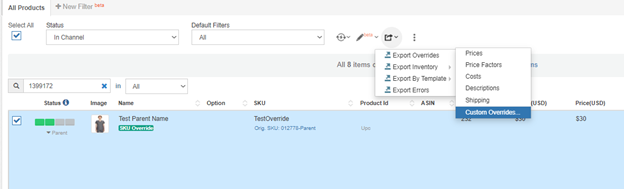
1- Select the products and go to Export>Export Overrides>Custom Overrides...
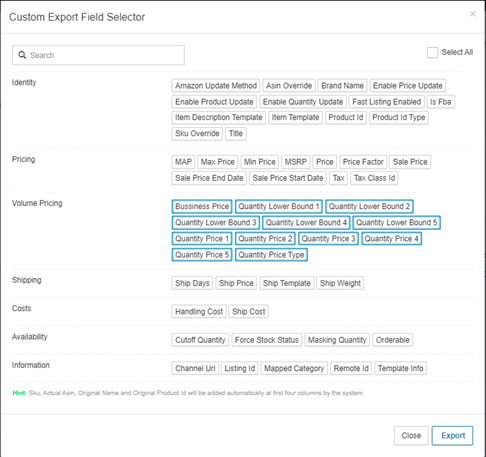
2- Select the fields in the Volume Pricing section.
3- Download the file from the Notifications from the top right.

These are the fields in the file.

IMPORTANT NOTE: Sku, Actual Asin, Original Name and Original Product ID will be added automatically at first four columns by the system.
IMPORTANT NOTE: You can delete the unrelated columns except the first one (channelproduct.sku) before uploading the file.
IMPORTANT NOTE: There are two options for quantity_price_type field. (Fixed or Percent)
IMPORTANT NOTE: If you want to delete a specific field data, you must leave the cells as empty. This action will delete the data which you have already in SA, when you upload the file back into SA.
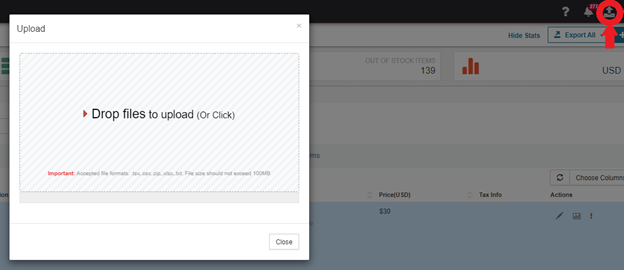
4- After the changes, upload the file back into SA.